


Use case
Check Excel names in your file
Names in Excel are used to help define and use fixed variables in a model, but they can become chaotic. Copied tabs or VBA code can lead to duplicate and hidden names. How can you tell if all the names in the Name Manager are used and where? PerfectXL reveals all these secrets in your model, allowing you to improve your use of defined names and clean up unnecessary, unused elements.
- Download the sample file to follow the steps.
- Already working with PerfectXL? Then jump to the solution with PerfectXL.
Step-by-step without PerfectXL
Step 1: Open the Excel Name Manager
It’s not difficult to find out which Excel names are present in your model. You click on ‘Name Manager‘ under ‘Formulas’ in Excel’s main menu, and then a pop-up appears showing an overview of all names and the cells they refer to.

Step 2: Show Formulas
Now we know that our model has seven defined names, with the last one merely being the title of a chart on our ‘Summary’ tab. Since a title can be directly inserted, we can easily delete that one. However, we don’t know if and where the remaining six names are used, so we don’t know if we can delete them. That will require some investigation!
By choosing the ‘Show Formulas’ option under ‘Formulas’ in Excel’s main menu, we make formulas visible in cells that normally only display values. References to defined names become visible this way too.

In our example file, we only find the name “Exp_est” on the “Summary” tab and the name “Opt_est” on the “Expenses” tab, but with the naked eye, we can’t find any more.
Can we now conclude that the other four names are not used in this model? Let’s see what happens if we delete them…

Step 3: Delete unused defined names
Before deleting anything, you start, of course, by creating a backup copy of your file. If you are unsure, it’s not smart to work with the original.
Then go to the “Summary” tab in your backup copy and carefully observe the current results.

Now, we call up the Name Manager again (the “Excel name list”) to delete all Excel names that are suspected to be unused. Pay close attention to any changes in the results on the dashboard with each deletion.

After deleting the name “Opt_act,” the difference between income and expenses changes from -2,980 to 32,550. So, this name was used somewhere after all!
The difference seems to be caused by the value in cell C5: Actual Expenses.
The backup copy can be discarded because we threw away names that were apparently used. Create a new backup copy of the original to search for the hidden defined name.

Step 4: Search for hidden names
Upon selecting cell C5, a dropdown emerges, displaying only one list item: 35,530. This particular item is selected, and in the formula bar, we observe the reference =Operating!C24, so this selected list item points to a cell on the “Operating” tab.

When we go to the “Operating” tab and select the respective cell, we only find a SUM (of the data in the column). In the name box (top-left of the formula bar), however, the defined name we were looking for appears: “Opt_act”. How does this name affect cell C5 on the “Expenses” tab, where it only refers to the location of the SUM?

Step 5: Research and improve
Let’s return to the “Expenses” tab and select cell C5. Then, go to “Data Validation” under “Data” in the Excel menu. Here we discover that the drop-down list indeed contains the name “Opt_act”.
In case of this model, we can conclude that there is no use for the entire list in cell C5.

Click “Clear all” in the Data Validation pop-up, to remove the list from cell C5.
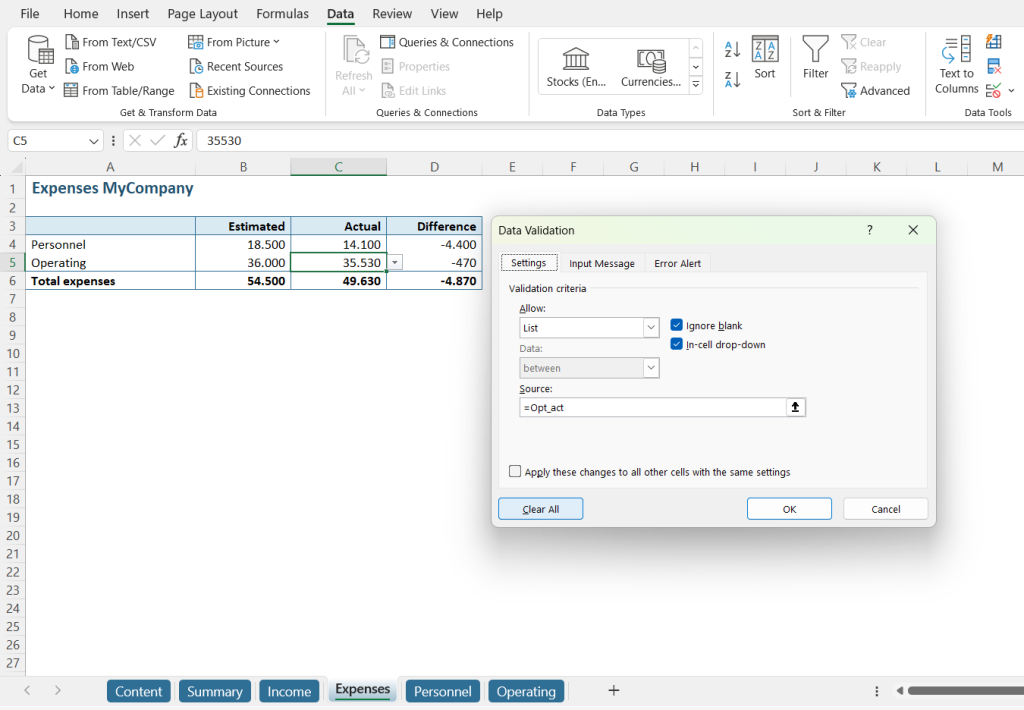
The value in cell C5 is now replaced by a fixed value:

That’s not our intention, so we manually replace the fixed value with a reference to cell Operating!C24.
Step 6: Check the results
If we now choose the “Show Formulas” option (under “Formulas” in the main menu), on the “Expenses” tab, we see that the names “Opt_est” and “Opt_act” are neatly next to each other in cells B5 and C5. The use of these names is now transparent.

Now we can trace three of the six remaining names in our model. We will give away, that when we remove the last three, there won’t be any consequences, because they are indeed not used anywhere. But you can imagine that this process is extremely time-consuming in more extensive models!
Step-by-step with PerfectXL
Step 1: Open your file in PerfectXL Explore
Open PerfectXL Explore and select the file you want to check defined names for. The tool will directly load a visualization of the spreadsheet.

Step 2: Overview of Excel names
Click “Defined Names” under “Excel Objects” in the left column of the screen, to check all the Excel names used in the model.
On the right you can quickly see how many times each defined name is referenced in the model via the references column, you can also click on “References” to sort based on number of references. Here we see quickly that some defined names are not referenced at all. These are safe to remove, click on the green arrow all the way to the right to jump to the name manager in Excel.

Step 3: Remove unused names
Here you can remove the unused defined names, in this case “act,” “Chart_table,” and “Diff.” This already helps a lot, as many models are filled with unused defined names.

Step 4a: Examine the Excel names that are being used
The next step is to actually dive into the model to make sure the names used are clear and represent what they should represent. You can also use the PerfectXL Explore interface for this.
We already know you can use the green arrow at the very end to jump to Excel, but you can also use the green link under references to get more information. Click this for “Exp_est.”
Here you see an overview of all references to this defined name, in this case just one. With the arrow on the right we can jump directly to the Excel model to view this reference.

Step 4b: Evaluate the Excel names that are being used
By reading the column and row headers here it seems like the cell is trying to reference estimated expenses, in that case the name “Exp_est” makes sense.
Checking defined names this way will guarantee good quality names. Continue this process for the other names to get a complete feel for which defined names are used and how.

Conclusion
Check Excel names defined in your model with PerfectXL and you will safe a lot of time, because there is no “trial-and-error” process needed to find out whether or not names are used in your file. You also don’t risk overlooking any names (or references to names), because PerfectXL will find them all!